How to Organize Your Contract Repository by Type

Joanne Chen
Support & Account Manager
Key takeaways
- Build a type list in Organization Settings that matches how your team actually searches for contracts.
- AI assigns types on processing; you can also set or change them on upload, edit, or in bulk.
- Grouped View turns any property or vendor list into collapsible sections by type — each contract appears once.
- Custom types let procurement, community, and regional teams navigate the same repository without the noise of a flat list.
A flat contract list stops working when your portfolio gets large. Recurring service agreements, change orders, permits, MSAs, and licenses all end up in the same view. Finding what you need means sorting through everything else first.
Organizing contracts by type solves this. Every contract gets a category. Your contract repository stops being a pile and starts being something your team can actually navigate.
Build a type list that fits your team
Contract types are fully configurable in Organization Settings. The categories should reflect how your team actually talks about and searches for contracts. Not a generic framework you have to work around.
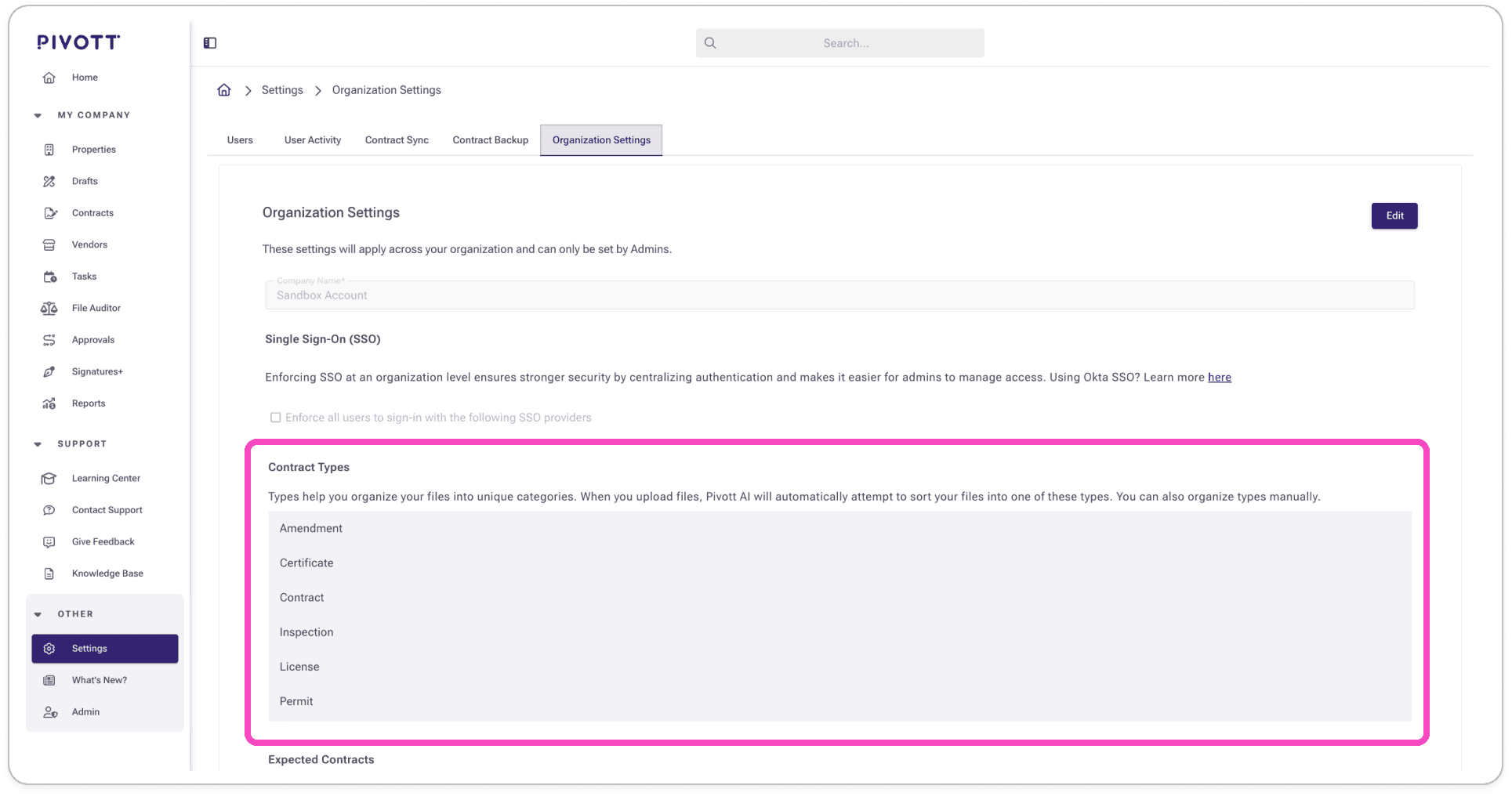
A few examples of how real estate teams structure theirs:
- Recurring operations: Elevator, Landscaping, HVAC, Pest Control, Boiler Service
- Renovations: Construction Services Agreement, Change Order, Unit Renovation, Emergency Work
- Procurement: Master Service Agreement, Addendum, Statement of Work, Order Form
- Compliance: Permit, License, Certificate of Insurance, Warranty, Inspection Report
Assign a type to any contract
When a contract is processed in Pivott, AI reads the document and assigns the right type based on your org's list. No manual sorting required. If it can't determine the type with confidence, it leaves the field blank rather than guessing.
You can also assign or change types yourself at any point. During upload, through the contract edit form, or in bulk across your existing repository. The type follows the contract everywhere it appears in the app.
Use Grouped View to see it all come together
Once contracts have types assigned, the Grouped View button reorganizes any property or vendor's contract list into collapsible sections. One section per type. All your MSAs together, all your change orders in one place, all your permits where you'd expect them.
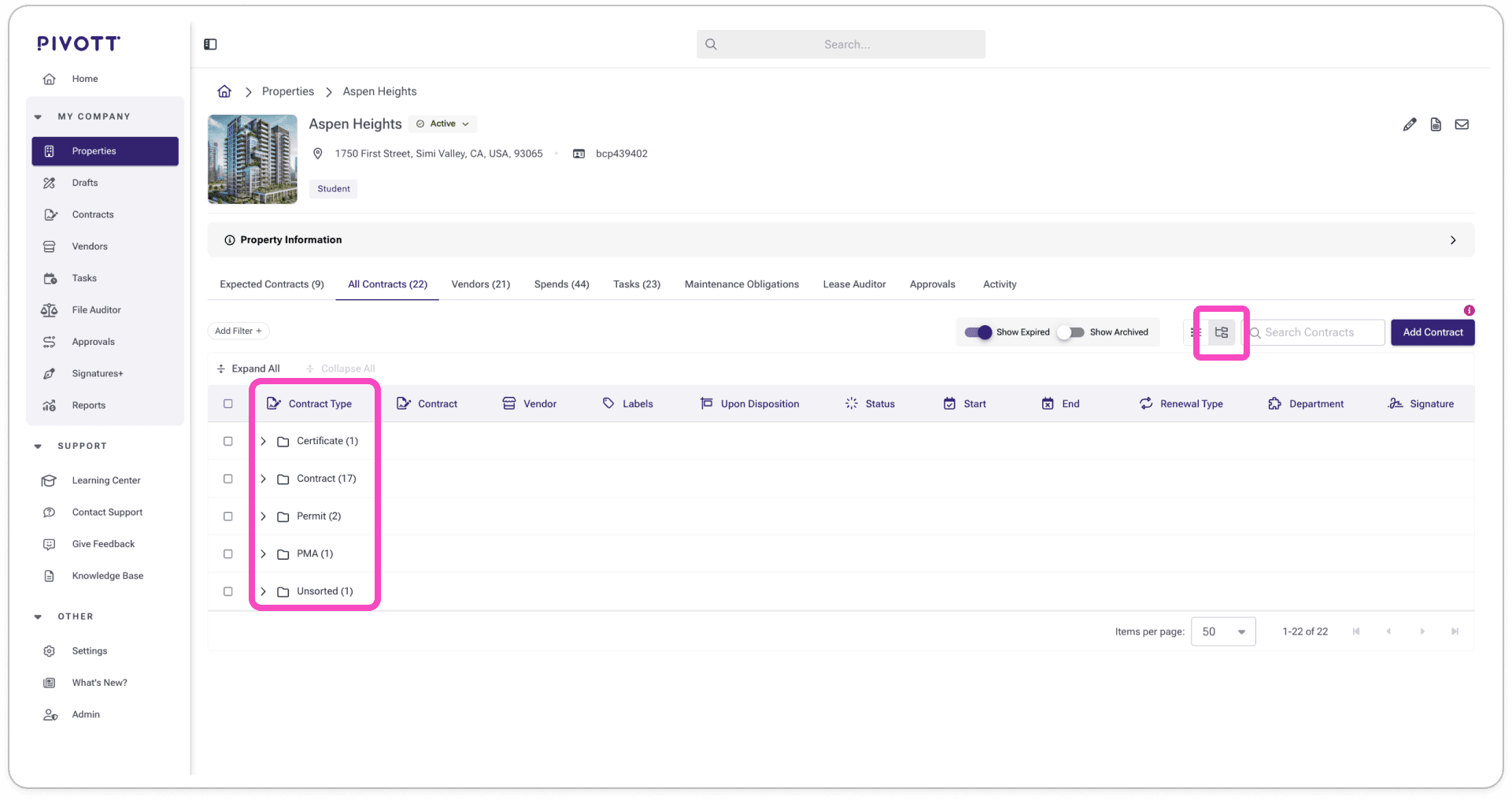
Each contract appears exactly once. Grouping adds structure without duplication.
A common scenario: a single vendor with dozens of change orders under one construction services agreement. Instead of an overwhelming flat list, the change orders sit together in their own group. The scope of the project is visible at a glance.
Different teams, different needs
Contract management for real estate teams is rarely one-size-fits-all. What a procurement manager needs to find quickly is different from what a community manager or regional director is looking for. A flat, unsorted list treats all of those needs the same way. It ends up serving none of them particularly well.
Typed contracts change that. Once your repository has structure, different people on your team can navigate to what's relevant to them without the noise of everything else. And because your type list is fully customizable, the categories can reflect how your organization is actually structured.
Ready to automate?
See how Pivott helps multifamily teams manage contracts, compliance, and vendor documents in one place.
Book a Demo